August 21, 2026

 Written by Mariam
If you own a compatible Vu+ receiver and are looking for a VTi download, choosing the correct image for your exact model is essential.
VTi is an Enigma2-based image designed around the Vu+ receiver ecosystem. Unlike OpenATV, OpenPLi or OpenHDF, which support hardware from multiple manufacturers, VTi is closely associated with Vu+ receivers.
The current VTi download area lists the VTi 15.0.X series, including releases through VTi 15.0.04. Device-specific USB packages are available for supported Vu+ models, including receivers such as the Vu+ Zero 4K, Solo 4K and Duo 4K SE.
This guide explains what VTi is, which Vu+ receivers can use it, how to choose the correct VTi image, how to install it using USB, and what to check if the flashing process fails.
Important: Never flash a VTi image intended for another Vu+ model. Always verify the exact receiver before downloading.
VTi is an Enigma2-based software image developed for Vu+ satellite receivers.
It provides the operating environment used to manage functions such as:
The important distinction is that VTi is not a universal Enigma2 image.
It is primarily associated with the Vu+ platform, so users should identify their exact Vu+ model before looking for a VTi download.
This makes the VTi download process slightly different from a general Enigma2 image search.
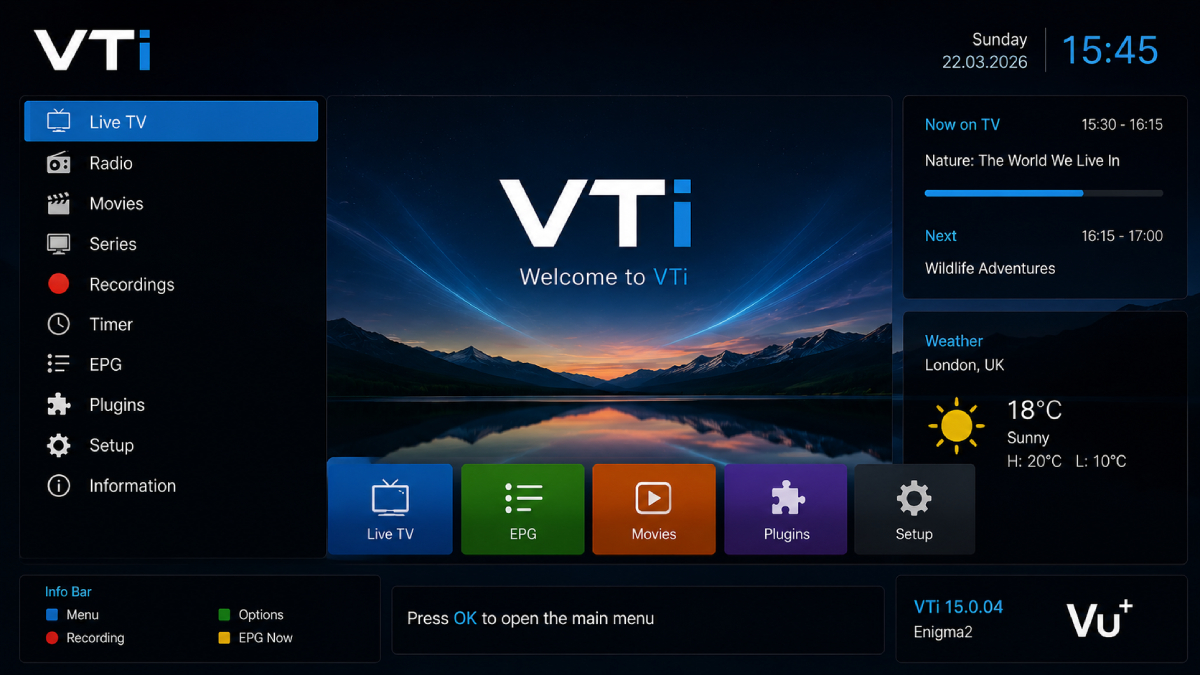
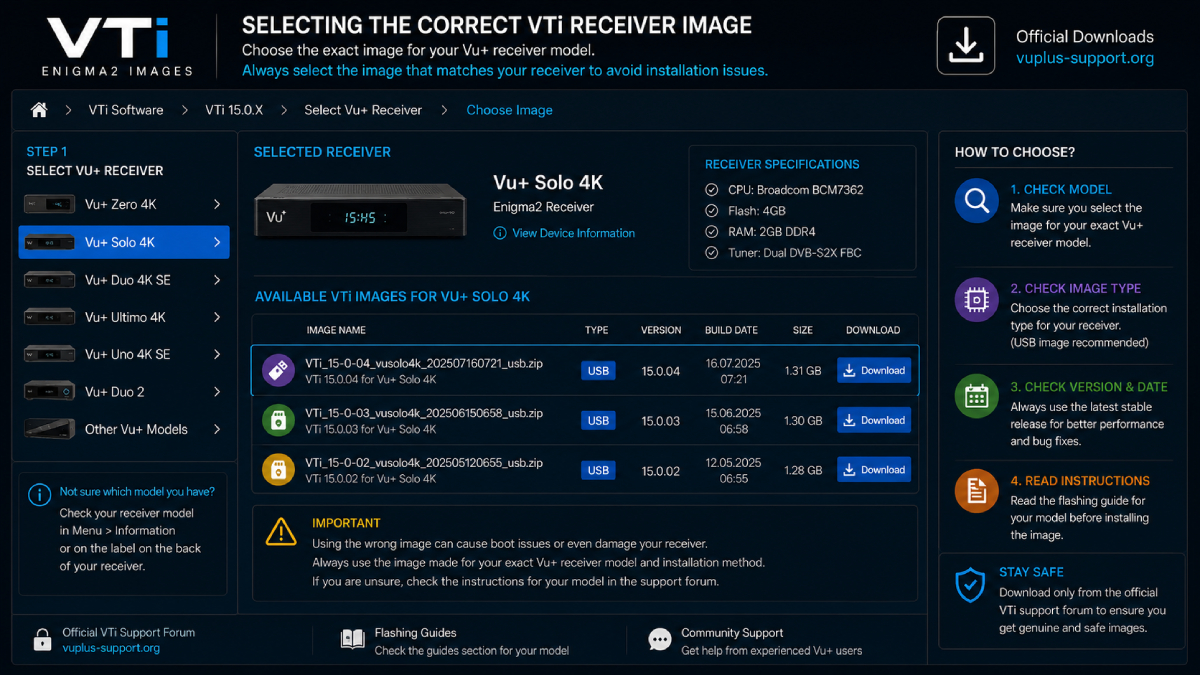
The current VTi download structure contains the VTi 15.0.X series, with VTi 15.0.04 appearing as the latest release in the available series I verified.
Device-specific files include model names and installation formats directly in the filename.
For example, the current VTi repository lists:
VTi_15-0-04_vusolo4k_202507160721_usb.zip
for the Vu+ Solo 4K.
It also lists:
VTi_15-0-04_vuzero4k_202507160645_usb.zip
for the Vu+ Zero 4K.
And a separate USB image is available for the Vu+ Duo 4K SE.
A VTi filename can tell you several important things:
This is why downloading a random VTi ZIP file is not recommended.
VTi is designed around the Vu+ receiver ecosystem, with device-specific downloads available for supported models.
Examples in the current VTi download structure include:
For example, the VTi repository currently lists VTi 15.0.04 for the Vu+ Zero 4K, while separate model-specific directories exist for the Duo 4K SE and other Vu+ receivers.
Do not assume: “I have a Vu+ receiver, so any VTi image will work.”
Instead:
Vu+ brand → exact model → VTi version → correct image
Before downloading VTi, identify the complete model of your receiver.
For example:
Vu+ Zero 4K
is different from:
Vu+ Uno 4K SE
and:
Vu+ Duo 4K SE
Each can have its own image package.
| Information | Example |
|---|---|
| Manufacturer | Vu+ |
| Receiver | Zero 4K |
| Image | VTi |
| Version | 15.0.04 |
| Installation | USB |
| File | Model-specific ZIP |
The official VTi download structure is organized by set-top-box model, which helps prevent users from selecting an image for the wrong device.
The recommended place to locate VTi images is the Vu+ / VTi Support Forum’s software download area.
The download section currently shows the VTi 15.0.X series and requires users to log in before downloading files.
From there, select your exact Vu+ receiver and then choose the appropriate VTi release.
Searching for: VTi 15.0.04 download
is not enough.
Instead, confirm: VTi 15.0.04 + exact Vu+ model + USB
This significantly reduces the risk of flashing the wrong image.
Before flashing your Vu+ receiver, prepare the following.
Confirm the model from the receiver or current system information.
Download the package specifically created for that model.
Many VTi model-specific packages are provided as USB images.
Back up important:
A current VTi support discussion also emphasizes the importance of having a backup available before reflashing.
Never interrupt power during the flashing process.
The exact button sequence can vary by Vu+ model, but the general workflow is straightforward.
Confirm the complete model name.
For example:
Vu+ Zero 4K
Open the VTi download area and navigate to your exact model.
For example, the current repository provides a dedicated VTi 15.0.04 USB image for the Vu+ Zero 4K.
Follow the preparation requirements for your specific Vu+ model.
The VTi image archive should be extracted according to the supplied structure.
Do not:
Power off the Vu+ receiver according to the model-specific flashing instructions.
Insert the prepared USB drive.
Power the receiver back on and follow the flashing procedure for your particular Vu+ model.
Depending on the receiver, this may involve a front-panel button or display prompt.
Do not assume that every Vu+ model uses exactly the same button sequence.
During the installation:
Wait until the receiver completes the process and reboots.
After VTi boots successfully, complete the initial configuration.
Typical setup tasks include:
Select your preferred interface language.
Connect the receiver to your home network.
Configure resolution and display settings.
Configure the installed tuner according to your satellite setup.
Configure:
Perform a fresh scan or restore your previously backed-up channel configuration.
VTi is relevant to users who build advanced Enigma2 receiver environments on supported Vu+ hardware.
If you’re also working with OSCam, compatibility depends on factors such as:
For the broader OSCam/iCAM/Enigma2 relationship, link this article to your existing:
Check:
First check whether:
Do not immediately flash another random image.
Do not automatically assume that the VTi image itself is defective.
The VTi support forum contains discussions about VTi 15.0.04 and plugin compatibility, including reports of problems that were disputed by other experienced users. One June 2026 discussion, for example, includes a VTi team response stating that VTi 15.0.04 is successfully used by many users.
This is a good example of why troubleshooting should begin with the specific plugin, configuration and receiver setup, rather than assuming the entire image is broken.
Stop before continuing if you realize that the image belongs to another Vu+ model.
Return to the VTi download section and select the exact receiver.
This is particularly important because the repository maintains separate model-specific files.
Before installing:
If everything is confirmed, proceed with the installation.
VTi is an Enigma2-based image designed primarily for compatible Vu+ receivers.
The current VTi download area lists the VTi 15.0.X series through VTi 15.0.04.
The VTi software download area is hosted through the Vu+ / VTi Support Forum.
Yes. The current repository lists a VTi 15.0.04 USB image specifically for the Vu+ Zero 4K.
Yes. A VTi 15.0.04 USB image is listed specifically for the Vu+ Solo 4K.
Yes. The VTi repository currently lists a model-specific VTi 15.0.04 USB image for the Vu+ Duo 4K SE.
Yes, model-specific VTi USB packages are available for supported Vu+ receivers. The exact flashing procedure depends on the receiver model.
No. Always use the image intended for your exact model.
Yes. Backing up your settings and configuration before reflashing is strongly recommended.
No. VTi is a separate Enigma2 image closely associated with Vu+ receivers, while OpenATV and OpenPLi support a broader range of Enigma2 hardware.
VTi is a strong subject for your Enigma2 software cluster because it targets a very specific and identifiable audience: Vu+ receiver owners looking for VTi software and installation information.
The current VTi download area provides model-specific VTi 15.0.X packages, including VTi 15.0.04 for several Vu+ receivers.
The safest approach is simple:
Identify your exact Vu+ model → open the corresponding VTi download directory → choose the compatible VTi version → verify the USB image → back up your receiver → follow the model-specific flashing procedure.
For users continuing with an advanced Enigma2 setup, link naturally from this article to your OSCam iCAM Enigma2 Guide.

Helping you stay connected with the best IPTV experience. FullPackage IPTV offers premium live TV, sports, movies, and international channels in HD & 4K. Enjoy seamless streaming anytime, anywhere!
© Fullpackage is Proudly Owned by fullpackage.co.uk