September 21, 2026

 Written by Mariam
Looking for an OpenViX Enigma2 Download for your compatible satellite receiver? OpenViX is an Enigma2-based image designed for supported receivers, offering a flexible software environment for satellite TV users.
Before downloading or installing OpenViX, it is important to verify your exact receiver model and choose the appropriate image for your hardware. This guide explains what OpenViX is, where to find the correct image, and the main steps to follow when installing it on a compatible Enigma2 receiver.
OpenViX provides receiver-specific images for a wide range of Enigma2 hardware. The official OpenViX download pages organize builds by manufacturer and model, and the available files can differ significantly between receivers.
At the time of writing, official OpenViX device pages show OpenViX 6.9.001 builds released in July 2026. For example, the official TM-Twin 4K page lists OpenViX 6.9.001 USB, while other supported devices can have different image formats such as MMC or Recovery eMMC.
That means there is no single OpenViX file that works for every Enigma2 receiver.
This guide explains how to find the right OpenViX image, understand the available download types, prepare a USB drive when required, install the image safely and troubleshoot common problems.
Important: Always verify the exact receiver model before flashing an OpenViX image. Using an image intended for another model can prevent the receiver from booting correctly.
OpenViX is an Enigma2-based software image designed for compatible satellite and digital television receivers.
It provides the software environment required to manage many receiver functions, including:
OpenViX is not the same thing as the receiver’s physical hardware.
Instead, it is the software image installed on supported Enigma2 hardware.
This distinction is important because the same OpenViX release family can have completely different files for different receivers.
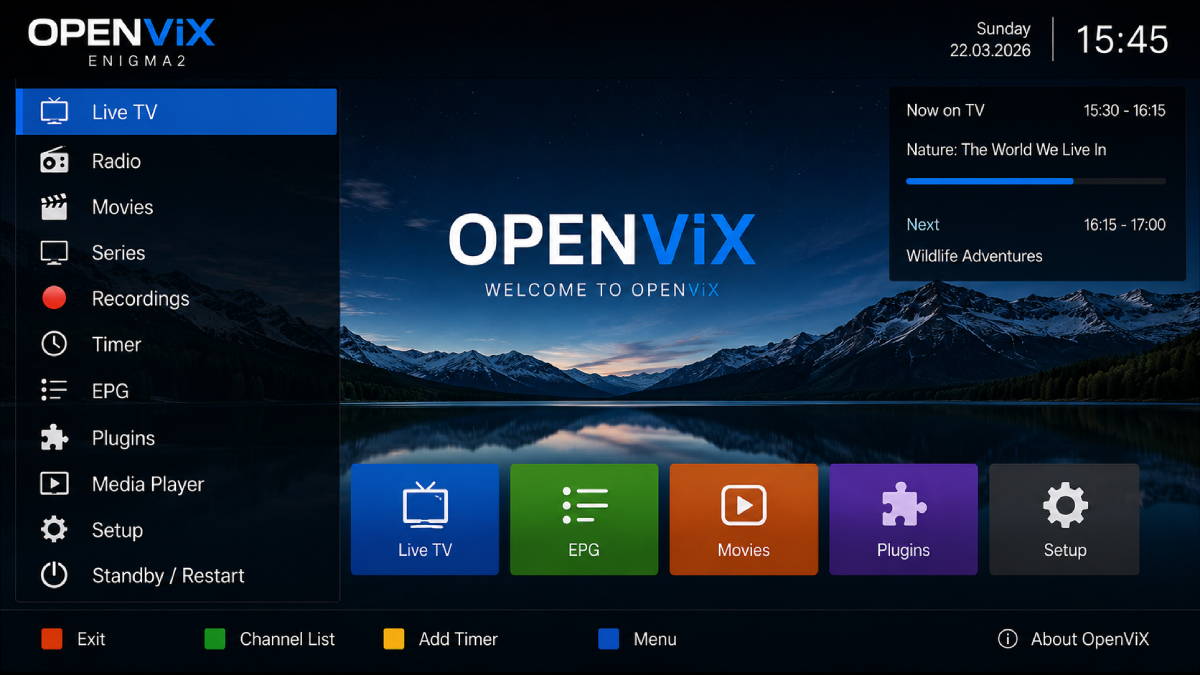
The current official OpenViX device pages show OpenViX 6.9.001 as a recent release.
For example, the official OpenViX page for the TechnoMate TM-Twin 4K lists:
OpenViX 6.9.001 Release TM-Twin 4K USB
with a modification date of July 3, 2026.
Other devices show the same release number but different installation formats.
For example, the official OpenViX page for the Octagon SX88v2 currently lists:
both dated July 3, 2026.
You should not search for: “OpenViX 6.9.001 download”
and then download the first file you see.
Instead, identify your exact receiver first.
The correct workflow is:
Receiver model → OpenViX device page → compatible release → correct image type
OpenViX supports a broad range of Enigma2 receivers.
Depending on the current OpenViX archive, supported manufacturers and families include devices from brands such as:
The official OpenViX archive is organized into manufacturer-specific and receiver-specific sections.
For example, the current archive includes dedicated pages for devices such as:
and many others.
Two receivers from the same manufacturer can require completely different image files.
The image may depend on:
For this reason, the following information should always be confirmed before downloading:
| Requirement | What to Check |
|---|---|
| Manufacturer | Exact brand |
| Receiver | Exact model |
| Current Image | Existing Enigma2 image |
| OpenViX Version | Compatible release |
| Image Type | USB / MMC / eMMC / Recovery |
| Bootloader | Device-specific requirements |
| Installation Method | Model-specific |
TechnoMate TM-Twin 4K
The official page currently provides an OpenViX 6.9.001 USB image.
Meanwhile, Octagon SX88v2 currently has OpenViX 6.9.001 files labeled MMC and Recovery eMMC.
So you should never assume that the same installation procedure applies to both.
Before downloading OpenViX, follow these steps.
Check the model printed on the receiver or shown in its system information.
For example:
Octagon SF8008
is not the same as:
Octagon SX88v2
even though both are Octagon receivers.
Navigate to the OpenViX download section and locate your exact receiver.
The official OpenViX archive provides separate download pages for individual models.
Look for the latest compatible OpenViX release.
Currently, 6.9.001 appears on multiple official device pages, but availability varies by model.
This is one of the most important steps.
A file may be labeled:
These are not automatically interchangeable.
If the receiver has special flashing requirements, follow those instructions rather than using a generic Enigma2 flashing tutorial.
Before starting the OpenViX Enigma2 Download, make sure that the image is compatible with your exact receiver model.
For the safest download, use the official OpenViX website and its device-specific download pages.
The official archive organizes OpenViX images by receiver manufacturer and model.
For example, the official TM-Twin 4K page currently lists multiple OpenViX releases, including 6.9.001 and previous 6.8 and 6.7 builds.
The same pattern appears on other receiver pages, which is useful if you need to compare a current release with an older build.
Downloading from the official OpenViX archive helps you avoid:
For receiver firmware, source verification is essential.
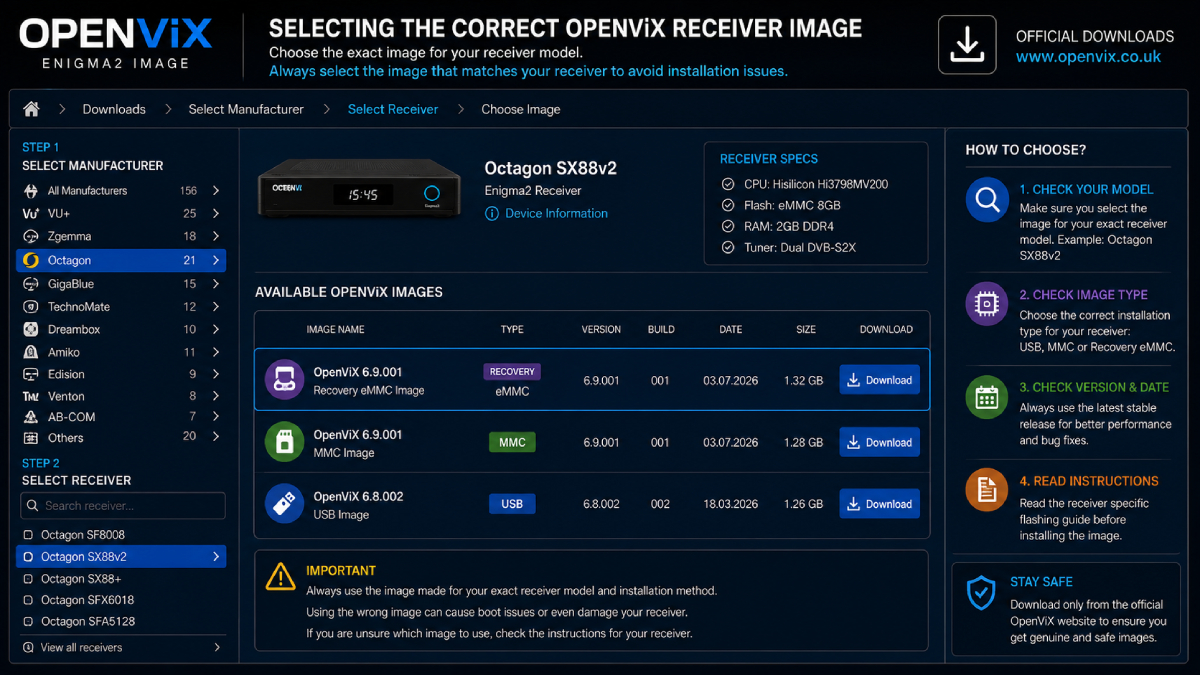
One of the most important differences between OpenViX downloads is the installation format.
A USB image is intended for receivers that support flashing OpenViX through a USB drive.
Official OpenViX documentation provides receiver-specific USB flashing procedures. For example, the OpenViX guide for Zgemma H9 models requires a FAT32 USB drive and emphasizes selecting the image for the exact H9 model type.
An MMC image is intended for compatible receivers using their supported MMC installation process.
Do not treat an MMC image as a standard USB image unless the receiver documentation explicitly says so.
Some modern receivers provide a separate Recovery eMMC image.
The official OpenViX SX88v2 page, for example, lists both Recovery eMMC and MMC files for OpenViX 6.9.001.
This indicates that the receiver’s storage and recovery architecture affects the required installation package.
Before flashing your receiver, prepare:
Confirm the exact receiver model.
Back up:
If your receiver uses USB installation, prepare a suitable drive and format it according to the receiver’s instructions.
Never disconnect power during the flashing process.
Do not use instructions written for a different receiver model.
The exact process differs by receiver, but the general procedure is similar.
Open the official OpenViX device page and download the USB image that matches your receiver.
Many OpenViX USB flashing guides use FAT32.
For example, official OpenViX guides for Zgemma and older VU+ receivers specify FAT32 USB media before extracting the image. Always follow your receiver’s specific instructions if they require a different preparation method.
Open the downloaded ZIP file on your computer.
The extracted folder structure varies by receiver.
For example, the official OpenViX Zgemma H9 guide explains that the extracted image contains the model-specific folder and boot files, which must be copied to the USB drive’s root directory.
Do not rename or rearrange files unless the receiver instructions tell you to.
Power down the receiver according to the device-specific instructions.
Insert the prepared USB drive.
Some receivers have a preferred USB port for flashing.
Power the receiver back on and follow the instructions shown on the receiver’s display or supplied with the image.
The exact button sequence can differ significantly between receivers.
For example, official OpenViX documentation for some older receivers requires a front-panel button during startup, while other models use different procedures.
Do not:
Wait until the receiver has completed the installation and rebooted.
Once OpenViX starts, configure:
Then confirm that the receiver is working correctly.
OpenViX can be relevant to users configuring advanced Enigma2 receiver environments.
If you’re researching OSCam on OpenViX, compatibility should be checked against:
For a broader explanation of OSCam, iCAM, Enigma2 compatibility and receiver architecture, see our:
Check:
First verify:
Do not immediately try another random image.
The problem may be related to:
Official OpenViX guides repeatedly emphasize using the correct image for the specific receiver model.
Do not force a USB installation if your receiver’s official OpenViX page provides an MMC or Recovery eMMC image instead.
For example, the current SX88v2 page lists separate MMC and Recovery eMMC packages.
Use the installation method designed for the hardware.
Before installing:
If all of these are confirmed, you’re much less likely to select the wrong firmware package.
OpenViX is an Enigma2-based software image designed for compatible satellite and digital TV receivers.
OpenViX 6.9.001 is currently listed on multiple official OpenViX receiver pages, with release availability depending on the specific model.
The recommended source is the official OpenViX download archive, where images are organized by manufacturer and exact receiver model.
OpenViX has provided images for supported Zgemma receivers. Always choose the image for your exact model. Official OpenViX flashing documentation specifically warns users to select the correct image for their H9 model type.
Yes, OpenViX provides images for supported Octagon receivers. Current official pages include models such as the SF8008 and SX88v2.
Many supported receivers provide USB images, but the installation process varies by model.
No. Release availability and image format depend on the receiver model.
They are different installation formats designed for different receiver storage and flashing architectures. You should use the format specified for your exact receiver.
Yes. A backup of your channels, bouquets, network configuration and other important settings is strongly recommended.
No. Never assume that an image designed for one model will work on another, even when both receivers come from the same manufacturer.
OpenViX can be used in Enigma2 environments where compatible OSCam builds and configurations are supported. Compatibility depends on the receiver, architecture and installed image.
OpenViX is a well-established option within the Enigma2 ecosystem, but downloading the correct image requires more than searching for the latest version number.
The safest process is:
Identify your exact receiver → open its OpenViX download page → check the release → verify the image type → back up your settings → follow the model-specific installation instructions.
The current official archive demonstrates why this matters. OpenViX 6.9.001 is available for multiple receivers, but the package type can differ from one model to another. The TM-Twin 4K currently has a USB release, while the SX88v2 has MMC and Recovery eMMC packages.
For users who are also working with OSCam on Enigma2, our OSCam iCAM Enigma2 Guide provides a natural next step for understanding compatibility and related configuration concepts.

Helping you stay connected with the best IPTV experience. FullPackage IPTV offers premium live TV, sports, movies, and international channels in HD & 4K. Enjoy seamless streaming anytime, anywhere!
© Fullpackage is Proudly Owned by fullpackage.co.uk