September 21, 2026

 Written by Mariam
If you’re searching for an OpenHDF Enigma2 Download for an Enigma2 receiver, the most important step is choosing an image that matches your exact hardware.
OpenHDF is an Enigma2 image developed for compatible digital TV and satellite receivers, with device-specific builds rather than one universal firmware package.
That distinction matters because OpenHDF downloads can differ according to the receiver model, image type and installation method.
Current HDFreaks-hosted files show OpenHDF 7.5 builds continuing to be produced for individual receivers. For example, the HDF image archive currently contains multiple OpenHDF 7.5 USB builds for the HiTube 4K, with build numbers and dates changing over time.
This guide explains how OpenHDF works, how to identify the correct image, where to find downloads, how to prepare your Enigma2 receiver and how to avoid common flashing mistakes.
Important: Never install an OpenHDF image simply because it belongs to the same manufacturer as your receiver. Always verify the exact model and image type first.
OpenHDF is an Enigma2-based Linux image designed for supported satellite and digital TV receivers.
Like other Enigma2 images, it provides the software environment used to manage functions such as:
The important point is that OpenHDF is not a single firmware file for every receiver.
Instead, the HDFreaks ecosystem provides receiver-specific images and builds.
That means the correct download depends on your hardware.
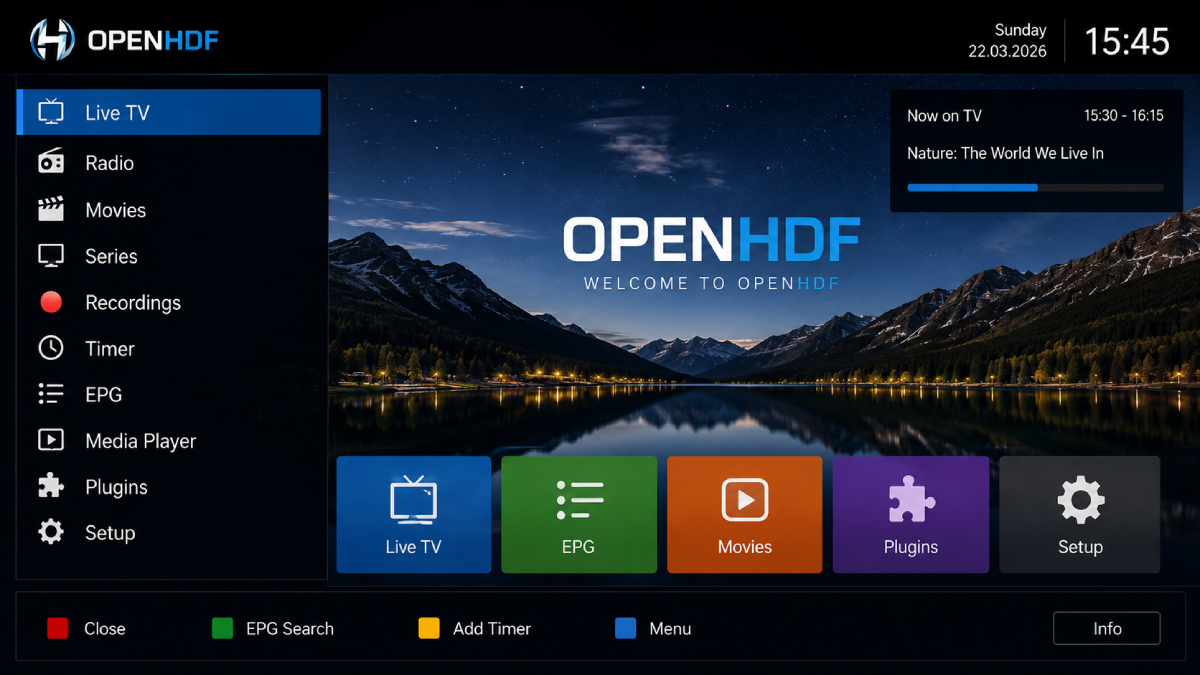
When searching for OpenHDF online, you may encounter different version numbers and build numbers.
For example, current HDFreaks-hosted archives show OpenHDF 7.5 builds with individual build numbers and dates. The HiTube 4K archive currently lists builds such as 59, 62, 65, 67 and 68, with the latest listed file dated March 22, 2026.
This is an important distinction:
OpenHDF version ≠ individual build number.
A filename such as:
openhdf-7.5-hitube4k-68-20260322_usb.zip
contains several pieces of useful information:
This naming structure helps you identify whether a download is appropriate for your receiver.
OpenHDF has been used across a wide range of Enigma2 receiver families.
Examples found across current and recent OpenHDF image listings include:
OpenHDF-related image listings include builds for receivers such as the Dreambox DM900, DM920, Octagon SF8008, GigaBlue receivers and Zgemma models.
However, brand-level compatibility is not enough.
For example:
OpenHDF for an Octagon SF8008 should not automatically be treated as compatible with every Octagon receiver.
The exact model is what matters.
Different Enigma2 receivers can use different:
Therefore, before downloading OpenHDF, identify:
| Requirement | What to Check |
|---|---|
| Manufacturer | Exact brand |
| Receiver | Exact model |
| Current Image | Current Enigma2 image |
| OpenHDF Version | Supported version |
| Build | Latest compatible build |
| Image Type | USB / Flash / Multiboot |
| Storage | NAND / eMMC / device-specific |
This is particularly important because OpenHDF builds can be highly device-specific.
Before downloading an image, follow this sequence:
Do not rely only on the brand.
For example:
Octagon → SF8008
is much more useful than simply:
Octagon
Verify which OpenHDF branch is available for your model.
Where multiple builds are available, compare the build number and date.
Look for identifiers such as:
Never assume that the installation method used for one receiver is identical to another.
For OpenHDF, the safest approach is to use the HDFreaks/OpenHDF project resources and verify the receiver-specific directory before downloading.
The HDFreaks forum provides links to OpenHDF image resources, including the current 7.5 image area.
HDFreaks OpenHDF Image Resources
When you reach the image repository, locate the directory corresponding to your receiver.
For example, a device-specific directory may contain several builds:
The existence of multiple files does not mean they are interchangeable.
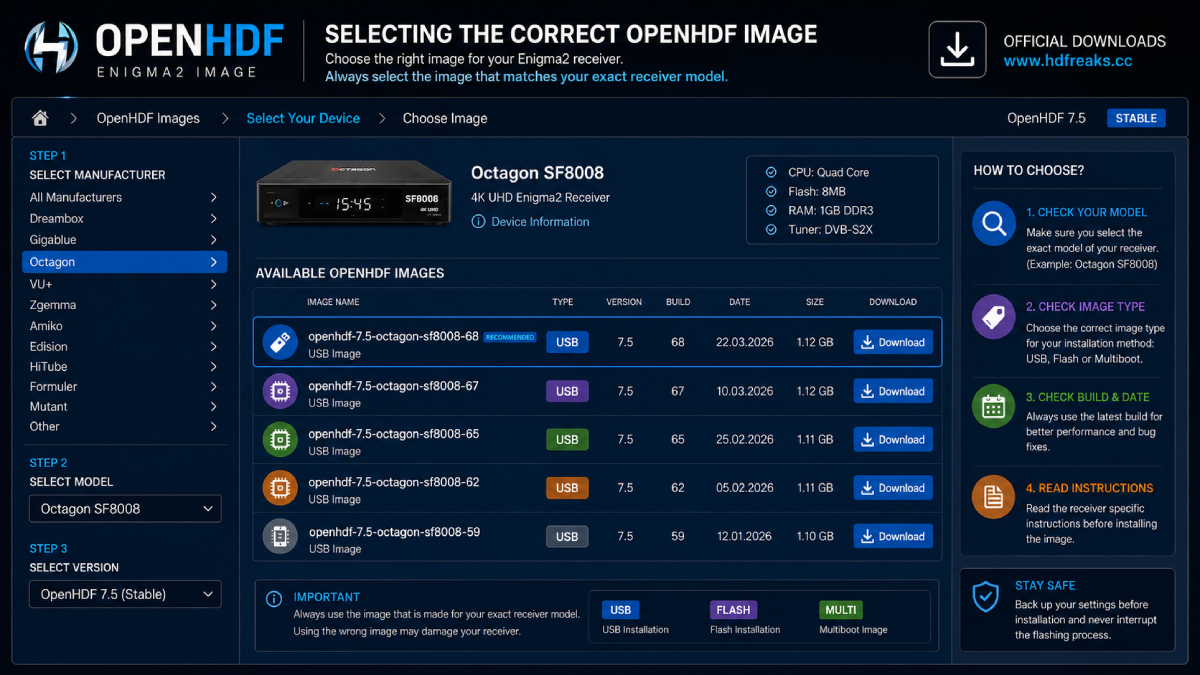
Understanding the filename can prevent a wrong installation.
For example:
openhdf-7.5-hitube4k-68-20260322_usb.zip
You can interpret it as:
| Part | Meaning |
|---|---|
| openhdf | Image |
| 7.5 | OpenHDF version |
| hitube4k | Receiver |
| 68 | Build number |
| 20260322 | Build date |
| usb | Installation type |
This is one of the reasons you should never rename or mix files between receiver models.
USB installation is available for many supported receivers, but the procedure varies by hardware.
A current OpenHDF archive, for example, explicitly labels HiTube 4K images with _usb.zip, showing that the image is intended for USB installation.
Prepare:
Then follow the flashing instructions for that particular receiver.
Do not assume that every OpenHDF USB image uses the same folder structure or flashing sequence.
Some receivers may require:
Always follow the instructions associated with your model.
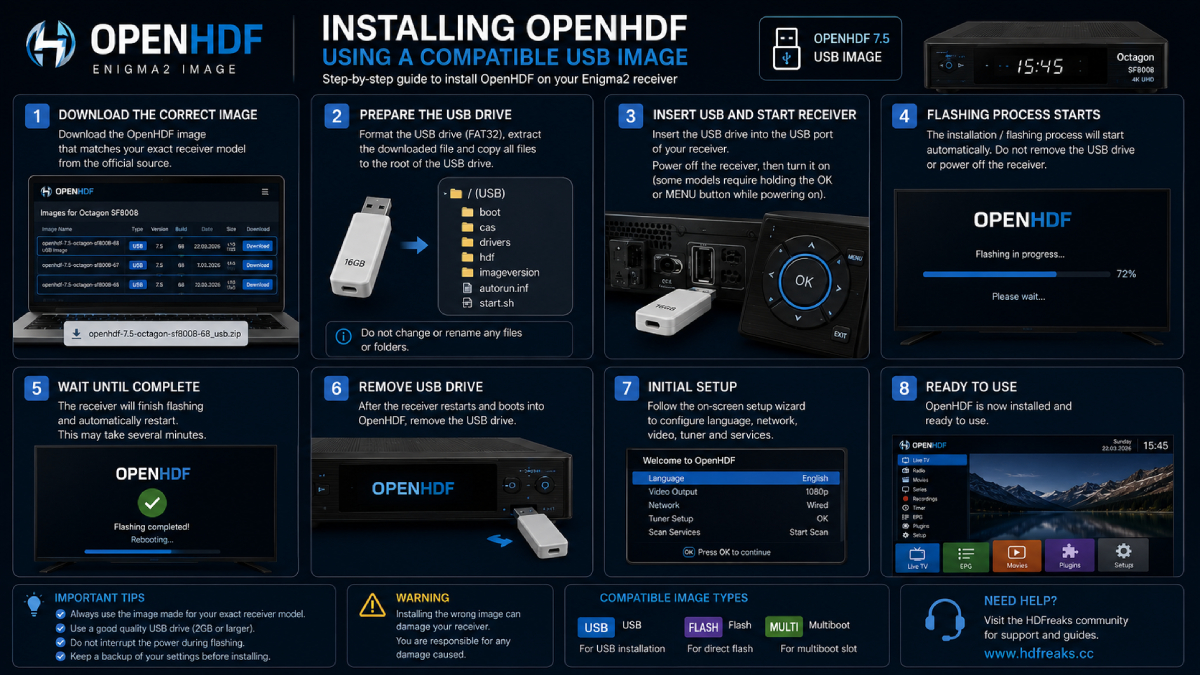
Before flashing your receiver, create a backup of important information.
Also make sure the receiver will not lose power during the flashing process.
An interrupted image installation can prevent the receiver from booting normally.
The exact procedure depends on the receiver, but the general workflow is:
Write down the complete model number.
For example:
Octagon SF8008
not simply:
Octagon
Open the HDFreaks image resources and locate the directory for your exact model.
Check:
Download the image intended specifically for your receiver.
Do not combine files from different receiver directories.
If the image is designed for USB installation:
The exact procedure is receiver-specific.
Depending on the hardware, you may need to:
Do not use instructions for another model simply because the manufacturer is the same.
Do not disconnect the receiver during installation.
Do not remove the USB drive until the receiver indicates that flashing is complete.
After OpenHDF boots, configure:
Then verify that the receiver operates normally before installing additional plugins.
Some Enigma2 receivers support multiboot, allowing multiple images to coexist in different slots.
OpenHDF discussions show that multiboot behavior can depend on the receiver, image version and installed helper tools. HDFreaks discussions also document cases where image flashing and slot management behaved differently across configurations.
Therefore:
Do not treat multiboot as a universal OpenHDF feature.
Before installing an OpenHDF multiboot image, confirm:
If you’re new to multiboot, a standard supported installation is usually easier to manage.
OpenHDF is also relevant to advanced Enigma2 users who run compatible software environments.
If you’re researching OSCam on OpenHDF, compatibility should be checked against:
For a broader overview of OSCam, iCAM, Enigma2 receiver compatibility and configuration concepts, see our:
Check:
First verify:
Do not immediately try another random image.
This is a particularly useful point for OpenHDF users.
HDFreaks discussions explain that an image can become available before its associated plugin feed is ready because the feed is built after the image.
Therefore, if a newly released image is available but some plugins cannot yet be downloaded, this does not necessarily mean that the image installation itself is broken.
Check:
HDFreaks discussions show that multiboot behavior can vary between image versions and configurations.
Check:
The image installation itself does not automatically configure every satellite system.
Before installing, verify:
If all of these are correct, you’re ready to proceed with much less risk of using the wrong image.
OpenHDF is an Enigma2-based Linux image designed for compatible satellite and digital TV receivers.
OpenHDF 7.5 is a current image branch with device-specific builds appearing in HDFreaks resources. The exact latest build depends on the receiver model. For example, the HiTube 4K archive currently lists OpenHDF 7.5 build 68 dated March 22, 2026.
Use the HDFreaks/OpenHDF image resources and select the directory corresponding to your exact receiver model.
OpenHDF images have been available for supported Octagon receivers, including the SF8008. Always verify the exact model and current image before installation.
OpenHDF builds have been published for supported Dreambox models, including DM900 and DM920 UHD receivers.
Many supported receivers provide USB images, but the exact flashing procedure depends on the model. Current OpenHDF archives explicitly identify some builds as USB images.
No. Always use the image built for your exact receiver model unless the project documentation explicitly states otherwise.
Some compatible receivers and configurations support multiboot, but the procedure varies by hardware and image. HDFreaks documentation shows that multiboot behavior can differ between setups.
Builds can be updated over time to include software changes, fixes and improvements. Device-specific archives may therefore contain several builds with different dates and build numbers.
OpenHDF can be used in Enigma2 environments where compatible OSCam builds and configurations are supported. Compatibility depends on the receiver, architecture and installed image.
OpenHDF is a useful option within the Enigma2 ecosystem, but its download process requires more attention to hardware compatibility than simply choosing the newest file.
The safest workflow is:
Identify the exact receiver → find the matching OpenHDF directory → check the version and build → verify the image type → back up your settings → follow the receiver-specific flashing procedure.
Current HDFreaks resources demonstrate why this approach matters: individual receiver directories can contain multiple builds with different dates and installation types.
If you’re building an advanced Enigma2 environment, you can also continue with our OSCam iCAM Enigma2 Guide for information about OSCam compatibility, Enigma2 architectures and related setup concepts.

Helping you stay connected with the best IPTV experience. FullPackage IPTV offers premium live TV, sports, movies, and international channels in HD & 4K. Enjoy seamless streaming anytime, anywhere!
© Fullpackage is Proudly Owned by fullpackage.co.uk