September 21, 2026

 Written by Mariam
Looking for an OpenPLi Enigma2 Download for your compatible satellite receiver? OpenPLi is an Enigma2-based software image designed for supported receivers, providing a flexible environment for satellite TV and receiver management.
Before downloading OpenPLi, it is important to identify your exact receiver model and choose the correct image for your hardware. This guide explains what OpenPLi is, where to find the appropriate download, and the main steps involved in installing it on a compatible Enigma2 receiver.
OpenPLi provides firmware images for a wide range of Enigma2 set-top boxes, including receivers from VU+, Zgemma, GigaBlue, Octagon, Dream Multimedia, Edision, Amiko, Formuler, Xtrend and other manufacturers. The official OpenPLi download system organizes images by receiver brand and model.
The current OpenPLi download portal lists OpenPLi 9.2 as a stable release, while other image branches and versions may also be available depending on the receiver.
This guide explains how to choose the correct OpenPLi image, download it from the official source, prepare your receiver, install the image safely and deal with common installation problems.
Important: OpenPLi images are device-specific. Always verify your exact receiver model before flashing an image.
OpenPLi is an open-source Enigma2-based software image designed for compatible digital television and satellite receivers.
It provides the operating environment that runs on supported receivers and includes features for:
Unlike a receiver manufacturer firmware package, an Enigma2 image such as OpenPLi provides a broader software environment that can be customized according to the receiver and user’s requirements.
OpenPLi also maintains its own receiver-specific download infrastructure, making it possible to select the appropriate manufacturer and model before downloading an image.
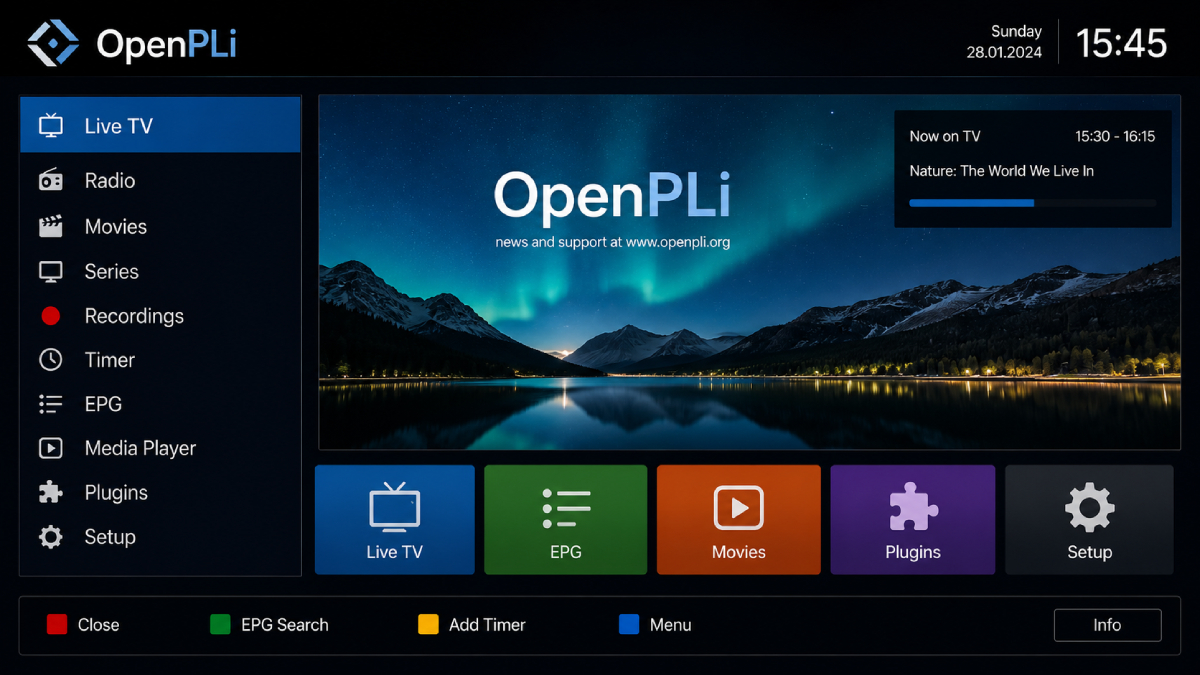
OpenPLi 9.2 is currently listed as a stable release on the official OpenPLi download portal.
The official release information describes OpenPLi 9.2 as a maintenance release and explains that it is a minor release within the OpenPLi 9 series.
However, this does not mean every Enigma2 receiver should automatically be flashed with OpenPLi 9.2.
Availability is model-specific.
For example, the official download pages currently list OpenPLi 9.2 images for receivers including:
Choose the version available for your exact receiver rather than choosing a version simply because it has the highest number.
This is an important distinction when downloading OpenPLi.
The official OpenPLi website identifies two major types of builds:
A stable release is intended for normal everyday use and is the recommended option for most users.
Nightly builds are generated from the latest development code and are primarily intended for developers and technically experienced users.
OpenPLi warns that nightly builds can be unstable and may change or break during development.
For most receiver owners:
Choose Stable Release.
Consider a Nightly Build only when you specifically need a newer development version or are comfortable troubleshooting software issues.
OpenPLi currently lists a large selection of supported set-top-box manufacturers.
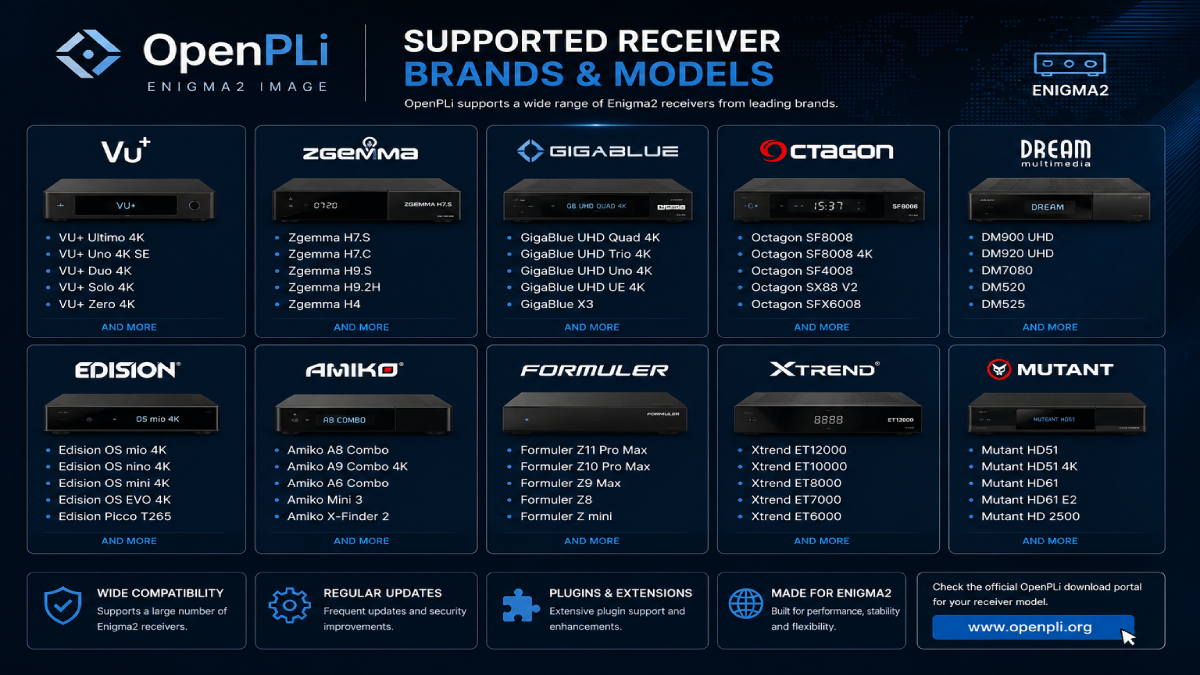
The official download portal includes brands such as:
| Manufacturer | OpenPLi Support |
|---|---|
| VU+ | Available for supported models |
| Zgemma | Available for supported models |
| GigaBlue | Available for supported models |
| Octagon | Available for supported models |
| Dream Multimedia | Available for supported models |
| Edision | Available for supported models |
| Amiko | Available for supported models |
| Formuler | Available for supported models |
| Xtrend | Available for supported models |
| Mutant | Available for supported models |
The complete list is considerably larger and is updated through the OpenPLi download system.
A manufacturer can have several receivers using different:
Therefore: VU+ is not enough information.
You need the exact model, such as the specific VU+ receiver.
The same applies to Zgemma, GigaBlue, Octagon and other brands.
Before downloading OpenPLi, identify these details:
| Information | Example |
|---|---|
| Manufacturer | Zgemma |
| Exact Model | H7.S |
| Current Image | OpenATV / OpenPLi |
| Target Version | OpenPLi 9.2 |
| Installation Method | USB / Multiboot / Flash Image |
| Receiver Storage | Model dependent |
OpenPLi’s device pages can provide more than one type of image.
For example, the official Octagon SF8008 page currently lists both USB and multiboot images. OpenPLi specifically warns that a multiboot image must be installed through the receiver’s Flash Image menu and should not be treated as a traditional USB flash image.
This distinction is extremely important.
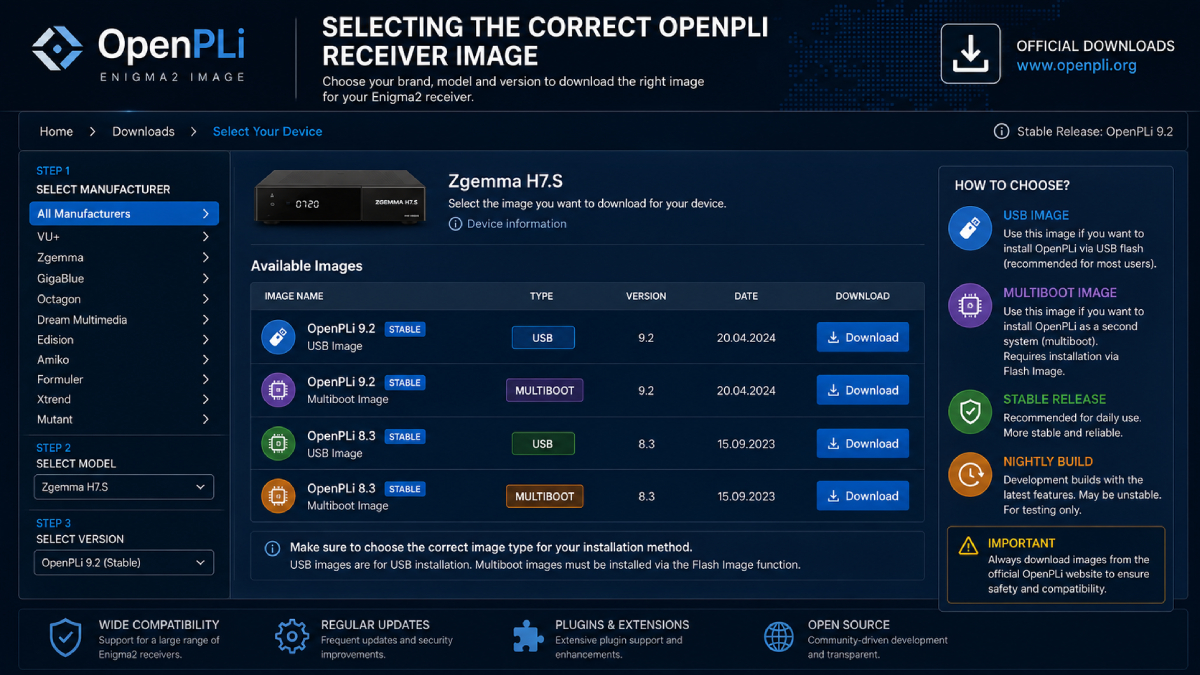
The safest way to obtain OpenPLi is through the project’s official download system.
From the official page, select:
The download portal also displays release information and warnings when specific receiver builds have known issues.
Using the official source helps you avoid:
For a firmware installation, the source of the image matters as much as the installation procedure.
Before flashing your receiver, prepare the following.
Check the model name printed on the receiver or displayed in the current system information.
Back up your:
OpenPLi’s release documentation notes that major version changes can require flashing rather than a normal software update, making backups particularly important.
If your particular receiver uses USB flashing, prepare a suitable USB drive according to the receiver-specific instructions.
Never interrupt power while the receiver is flashing a new image.
The installation procedure is not identical across all Enigma2 receivers.
Always check the instructions for your exact model.
The exact procedure depends on the receiver, but the general workflow is straightforward.
Confirm the complete model.
For example:
Manufacturer: Zgemma
Model: H7.S
The OpenPLi website provides a dedicated download page for this model and currently lists OpenPLi 9.2 stable images.
Open the official OpenPLi download page and navigate to your receiver model.
Download the image that matches your hardware and installation method.
Do not select an image intended for a similar-looking model.
If your receiver supports USB flashing:
The exact files and directory structure can vary between receivers.
Insert the prepared USB drive into the receiver.
Depending on the model, you may need to:
Do not assume that the procedure for one Zgemma or Octagon model will work identically on another.
During the flashing process:
Do not disconnect the receiver from power.
Do not remove the USB drive until the receiver indicates that the process is complete.
An interrupted firmware installation can leave the receiver unable to boot normally.
After OpenPLi starts, complete the initial configuration:
Once the basic configuration is complete, you can install the plugins and software appropriate for your receiver.
This distinction deserves special attention.
A file labeled USB is not necessarily interchangeable with one labeled multiboot.
OpenPLi explicitly states that multiboot downloads may need to be installed through the receiver’s Flash Image menu rather than using the traditional flashing method.
Generally intended for the receiver’s supported USB flashing procedure.
Designed for supported receivers and installation through their appropriate image-management functionality.
Before installing:
Read the instructions on your exact receiver’s OpenPLi download page.
This single step can prevent many installation errors.
OpenPLi is also relevant to users building advanced Enigma2 receiver setups.
If you’re researching OSCam on OpenPLi, compatibility depends on factors such as:
For a broader explanation of OSCam, iCAM, Enigma2 compatibility, receiver architectures and troubleshooting, see our:
Check:
First verify:
Do not immediately install another image without identifying the cause.
Stop before flashing if you discover that the image is intended for another receiver.
Return to the official OpenPLi download page and select the exact model.
Check the OpenPLi receiver downloads
This can be expected.
OpenPLi explains that multiboot images may need to be installed through the receiver’s Flash Image menu rather than through traditional USB flashing.
Check:
Installing an image does not automatically configure every satellite setup.
Before installing, verify:
If all of these are confirmed, you can proceed with much greater confidence.
OpenPLi is an open-source Enigma2-based software image for compatible digital TV and satellite receivers.
The official OpenPLi download portal currently lists OpenPLi 9.2 as a stable release. Available versions can vary by receiver model.
The safest option is the official OpenPLi download portal, where you can select your manufacturer and exact receiver model.
Yes. OpenPLi lists Zgemma among its supported receiver brands, with individual model pages providing compatible images.
Yes, OpenPLi provides images for supported VU+ models. The exact image must match the receiver model.
Yes. OpenPLi currently provides images for supported Octagon models, including the SF8008 family.
Many supported receivers provide USB installation images, but the exact process varies by model. Always follow the instructions provided for your receiver.
Stable releases are intended for normal use, while Nightly builds are generated from development code and may be unstable.
Not necessarily. OpenPLi specifically warns that multiboot images may require installation through the receiver’s Flash Image function.
OpenPLi can be used in Enigma2 environments where compatible OSCam builds and configurations are supported. Compatibility depends on the receiver and installed image.
OpenPLi remains an important option within the Enigma2 ecosystem, particularly for users who want an open-source receiver image with broad hardware support.
The biggest mistake to avoid is treating OpenPLi as a universal firmware file.
The correct image depends on your exact receiver model and installation method.
The official OpenPLi download portal currently lists 9.2 as a stable release and provides model-specific downloads across a large range of receiver manufacturers.
For most users, the safest approach is simple:
Identify your exact receiver → choose the official OpenPLi image → verify the image type → back up your settings → follow the model-specific flashing instructions.
If you’re also configuring OSCam on an Enigma2 receiver, continue with our OSCam iCAM Enigma2 Guide for additional compatibility and setup information.

Helping you stay connected with the best IPTV experience. FullPackage IPTV offers premium live TV, sports, movies, and international channels in HD & 4K. Enjoy seamless streaming anytime, anywhere!
© Fullpackage is Proudly Owned by fullpackage.co.uk