September 21, 2026

 Written by Mariam
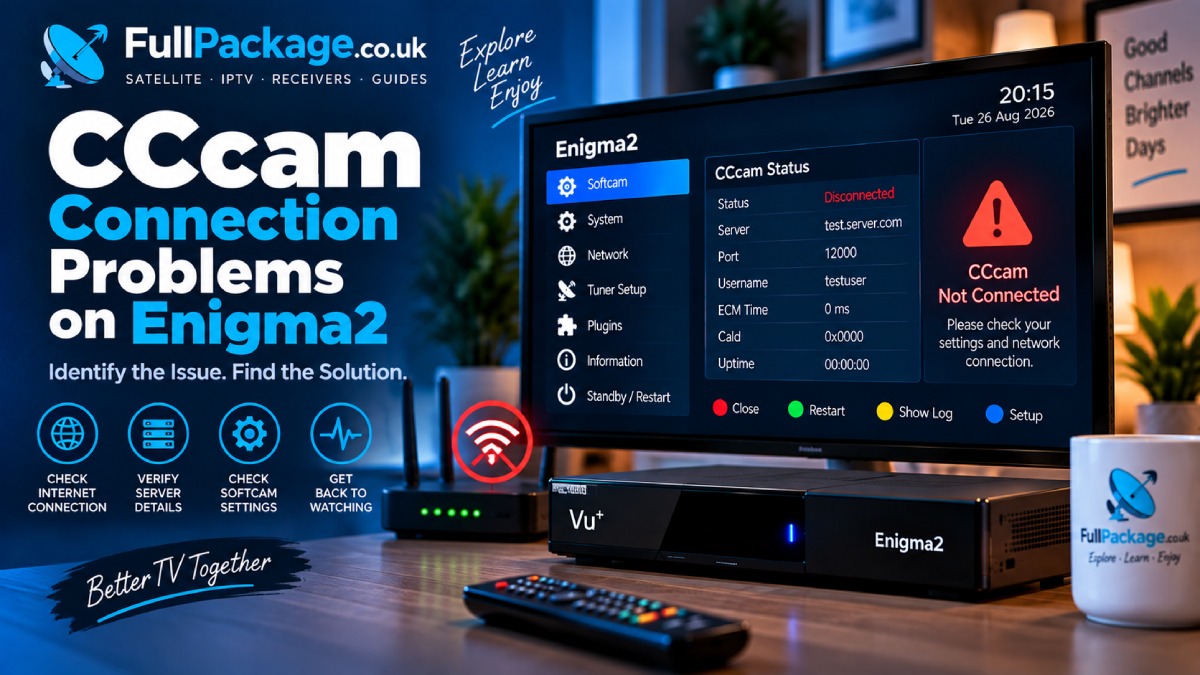
When CCcam is not working correctly on an Enigma2 satellite receiver, the problem is not always the CCcam service itself. Connection issues can come from the satellite signal, tuner configuration, network connection, receiver software, service compatibility, or conflicts between installed softcams.
The most effective approach is to identify which part of the system is failing before changing settings.
This CCcam troubleshooting guide explains the most common problems and provides a practical diagnostic process for Enigma2 receivers, including situations such as no signal, connection failures, missing channels, unstable connections, freezing, and softcam conflicts.
Important: This guide focuses on troubleshooting receivers and authorized services. It does not provide credentials, server access details, or instructions for bypassing encrypted broadcasts.
CCcam troubleshooting is the process of identifying and resolving problems that prevent an authorized CCcam-based setup from working correctly with a compatible satellite receiver.
A problem can occur at several different levels:
This is why reinstalling CCcam immediately is often not the best first step.
A better approach is to determine whether the receiver is actually receiving the satellite signal, whether the network is working, and whether the softcam is running correctly.
Before changing anything, identify exactly what you see on the screen.
| Symptom | Possible Area |
|---|---|
| No Signal | Dish, LNB, cable, tuner or configuration |
| Tune Failed | Tuner or satellite configuration |
| Service Not Found | Channel/transponder information |
| Scrambled or unavailable service | Service compatibility or authorized access |
| CCcam does not connect | Network, DNS or service issue |
| Connection repeatedly drops | Network or service stability |
| Channels freeze | Signal quality, network or service performance |
| Some channels work and others do not | Package or compatibility issue |
| Receiver becomes unstable | Software or softcam conflict |
The message itself is useful because different symptoms point to different parts of the system.
One of the most common mistakes is assuming that every black screen is a CCcam problem.
If the receiver displays “No Signal”, start with the satellite reception rather than the softcam.
Open the receiver’s signal information or satellite finder and check the available reception indicators.
OpenATV documentation distinguishes between several reception measurements, including Lock, SNR/C/N, AGC and BER. It also recommends testing a known free-to-air service when diagnosing reception problems.
Check:
A CCcam service cannot fix a physical satellite reception problem.
If a free-to-air channel on the same satellite also has no signal, investigate the dish, LNB, cable, tuner or configuration before changing CCcam settings.
This simple test can prevent unnecessary changes to the receiver’s software.
If the satellite signal is working but the CCcam service does not connect, the next area to investigate is the network.
Start with the receiver’s network settings.
Check:
OpenATV recommends checking the network in layers: first the adapter and physical connection, then the IP configuration, local gateway, internet connectivity and DNS resolution.
If the receiver has no valid IP address, the problem is probably local to the network rather than the CCcam service.
Possible causes include:
Restarting the network adapter can sometimes help with temporary connection problems. However, restarting the network does not solve a disconnected cable or unavailable router.
A receiver may appear to have internet access while still having problems resolving server names.
For example, other network functions may work while a service that depends on a hostname cannot establish a connection.
If this happens, check the DNS configuration in the Enigma2 network settings.
OpenATV’s network documentation specifically identifies DNS as a separate troubleshooting layer because IP connectivity and hostname resolution are not the same thing.
A useful diagnostic sequence is:
Network adapter → IP address → Gateway → Internet → DNS → Service
This prevents you from changing CCcam settings when the actual problem is the receiver’s network configuration.
Another common situation is that the receiver appears to have a working network connection, but a particular service or channel remains unavailable.
This does not automatically mean that the receiver is defective.
Possible causes include:
If only certain channels are affected, compare them with a current Satellite Channel List.
This can help determine whether the problem is related to the channel configuration rather than the entire receiver.
If multiple channels from the same transponder are affected, check the transponder and tuner information before assuming the CCcam service is responsible.
Freezing is different from a complete connection failure.
A receiver may display a picture but experience:
Several factors can contribute to this behavior.
A marginal satellite signal can cause unstable reception even when the receiver initially locks onto the channel.
Do not rely only on a single percentage displayed by the receiver. OpenATV notes that percentage scales can vary between receivers and drivers, while SNR/C/N can be more useful when comparing reception within the same installation.
An unstable internet connection can also affect an authorized service that depends on network communication.
Look for:
For receivers that support it, a wired Ethernet connection can be useful for troubleshooting because it removes Wi-Fi as a variable.
Running multiple softcam applications at the same time can create unnecessary conflicts.
For example, if both CCcam and another softcam are active, the receiver may behave unpredictably depending on the image, plugins and configuration.
Symptoms can include:
For troubleshooting purposes, identify which softcam is intended to be active and avoid running competing applications simultaneously.
The exact management method depends on the Enigma2 image and receiver.
An Enigma2 image update can change configuration files, plugins, network settings or compatibility.
If CCcam worked before an update and stopped immediately afterward, compare what changed.
Check:
Do not immediately assume that the service has stopped working.
The update itself may have changed a receiver setting.
For additional information about the Enigma2 environment and receiver configuration, the OpenPLi Wiki provides technical documentation and community resources for compatible receivers.
Before performing major software changes, keep a backup of important receiver settings and channel configuration.
This makes it much easier to restore a working configuration if an update introduces a problem.
When only specific channels fail, the problem is usually more specific than a complete CCcam connection failure.
Possible explanations include:
Start by comparing a working channel with a non-working channel.
Ask:
This approach helps narrow the problem before changing the receiver configuration.
Tune Failed and Service Not Found are generally tuner or channel-database symptoms rather than simple CCcam connection errors.
Possible causes include:
The first test should be a known free-to-air service.
If the free-to-air service also fails, focus on the tuner and satellite reception.
If free-to-air channels work normally but a specific authorized service remains unavailable, continue with the service and compatibility checks.
For network-related CCcam problems, review the receiver’s network configuration.
Important items include:
OpenATV recommends checking these layers separately rather than treating “internet connected” as a complete diagnosis.
A receiver can have an IP address and still have a gateway or DNS problem.
That is why the network test should be performed before changing service configuration.
A restart can sometimes resolve a temporary software or network issue, but restarting everything repeatedly makes troubleshooting harder.
A practical sequence is:
Determine whether the problem affects one channel or many.
Test a known free-to-air channel.
Verify the receiver’s IP, gateway and internet connection.
Make sure the receiver can resolve required hostnames.
Confirm that the intended softcam is running.
If the network or softcam was restarted, test again before making additional changes.
If the problem remains, move to the next diagnostic layer.
This is more effective than changing several settings at once.
Use this quick checklist before making major changes:
Is the satellite signal working?
Does a free-to-air channel work?
Is the correct satellite selected?
Is the tuner configured correctly?
Is the network connected?
Does the receiver have a valid IP address?
Is the gateway working?
Is DNS configured correctly?
Is the intended softcam running?
Are multiple softcams active?
Is the receiver software compatible?
Is the channel list current?
Does the problem affect one channel or many?
Did the problem begin after an update?
Is the issue related to the satellite signal, network or service?
If your receiver, network and satellite signal are working correctly but you still want to verify whether a service is compatible with your setup, you can check the Free CCcam & OSCam 24-Hour Trial.
Testing a service separately can help you distinguish receiver or network problems from service-specific issues.
The exact menus differ between Enigma2 images such as OpenATV, OpenPLi, VTi and others, but the diagnostic logic remains similar.
If you are using Enigma2, it is useful to separate the receiver into four main layers:
1. Tuner Layer
Satellite, LNB, DiSEqC, signal and channel lock.
2. Network Layer
Ethernet/Wi-Fi, IP, gateway, DNS and internet access.
3. Software Layer
Enigma2 image, plugins and softcam operation.
4. Service Layer
Compatibility and availability of the authorized service.
This layered approach is especially useful because a failure at one level can look similar to a failure at another.
For example, a black screen does not automatically mean the softcam is the problem.
Reinstalling the image or rebuilding the receiver should not normally be the first troubleshooting step.
Before considering a major reset, check:
Only after these checks should you consider more significant recovery actions.
A full reflash can remove working settings and channel configurations, so it should be approached carefully.
If you have completed the basic troubleshooting steps and the problem remains, provide useful diagnostic information when contacting support.
Include:
Avoid sending passwords, private credentials or other sensitive account information.
Good diagnostic information allows support to identify the affected layer more quickly.
The cause can be related to the network, DNS, receiver software, tuner configuration, softcam status or service compatibility. Start by checking satellite reception and network connectivity before changing the CCcam configuration.
“No Signal” should first be treated as a satellite reception or tuner problem. Test a known free-to-air channel and check the tuner, LNB, DiSEqC, cable and signal information.
A connection alone does not guarantee that a particular channel or package is available. Check the channel configuration, satellite reception and whether the authorized service supports the requested channel.
Freezing can have several causes, including network instability, service-side interruptions or marginal reception. Compare multiple channels and check whether the issue is limited to a particular service or transponder.
Yes. Running multiple softcams simultaneously can create conflicts or unstable behavior. For troubleshooting, use the intended softcam and avoid unnecessary competing processes.
Not as a first step. Check the tuner, satellite signal, network, DNS, softcam status and software compatibility before considering a full reinstallation.
The general diagnostic process applies to many Enigma2 receivers, but menu names and available options vary between receiver models and images.
Effective CCcam troubleshooting starts with identifying the layer where the problem occurs.
Do not immediately assume that a black screen or unavailable channel means the CCcam service has failed. Check the satellite signal, tuner configuration, network connection, DNS, receiver software and service compatibility in a logical order.
For Enigma2 users, this approach can save time and reduce unnecessary changes to a working receiver configuration.
If you are troubleshooting CCcam on an Enigma2 receiver, start with the simplest question:
Is the problem with the satellite signal, the network, the receiver software, or the authorized service?
Once that layer is identified, the solution becomes much easier to find.

Helping you stay connected with the best IPTV experience. FullPackage IPTV offers premium live TV, sports, movies, and international channels in HD & 4K. Enjoy seamless streaming anytime, anywhere!
© Fullpackage is Proudly Owned by fullpackage.co.uk